Usage
A clear breakdown of what your app is using and what it costs.
The Usage page turns "what am I paying for?" into a picture you can actually read. It's based on your app's real usage — what genuinely ran — broken down so you can see where every cent goes. Open it from the Usage item in your organization menu, or from a project's settings for a single project's view.
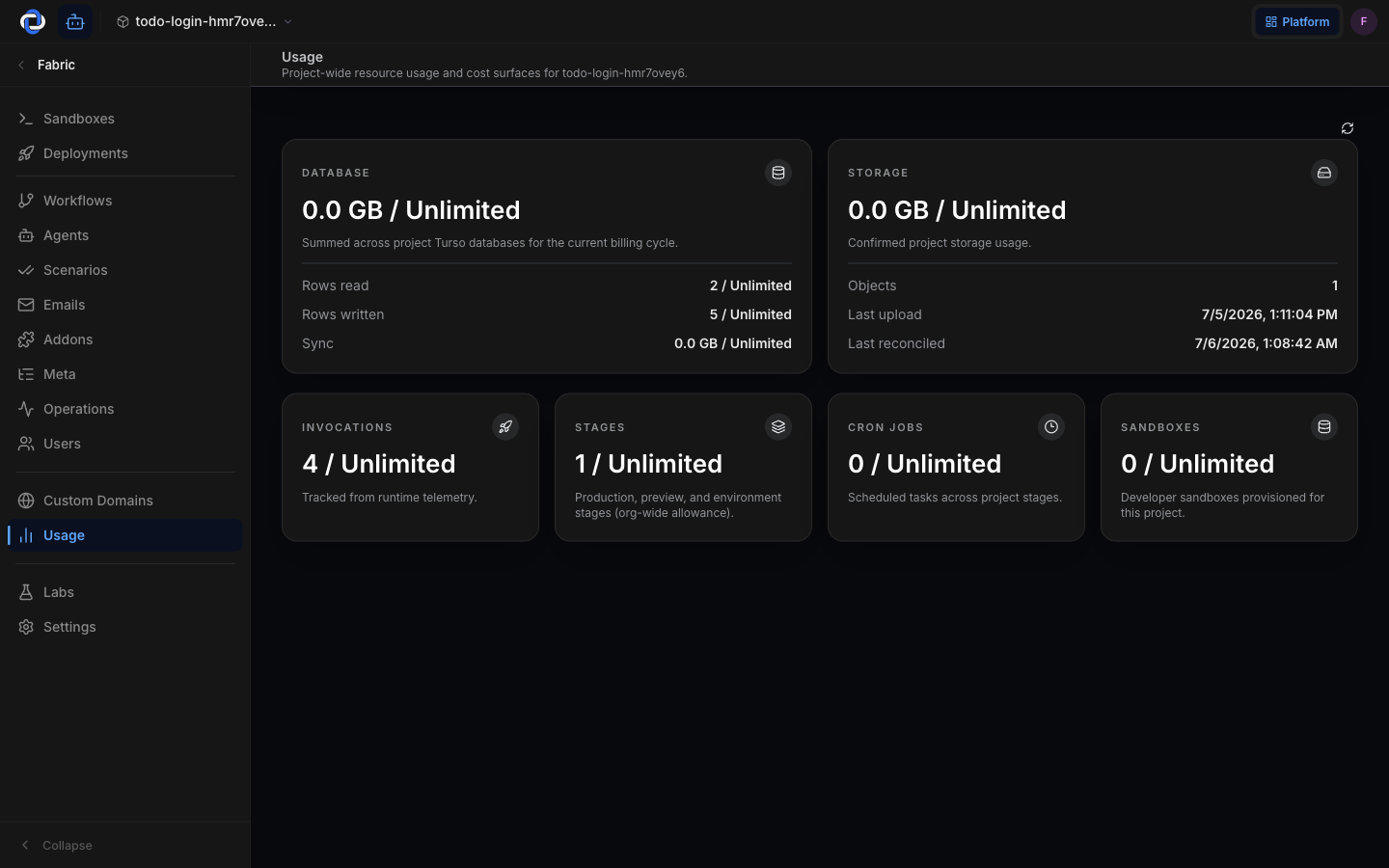
What's measured
Usage is grouped into the things that actually drive cost, each shown on its own card:
- Database — rows read and written across your project's databases in the current billing cycle.
- Storage — the files your app keeps, with when they were last uploaded.
- Invocations — how many times your functions ran, tracked from real runtime telemetry.
- Stages — your live, preview, and development environments. This is the allowance shared across your whole organization.
- Cron jobs — recurring jobs that run on a timer across your project's stages.
- Sandboxes — the development environments you spin up to build in.
- AI — what your app spends on AI calls appears on the project overview's Agent spend tile and in the organization-wide view.
How costs work
You pay provider cost plus a small markup that's shown to you up front — never a hidden multiplier. Lightweight functions run on infrastructure that scales to zero, so they cost nothing when nobody's using them. Heavier work runs on bigger machines and is priced accordingly. Pikku Studio Cloud decides which is which; you just see the result here.
Sandboxes are free to create. You only ever pay for the usage your live app actually consumes.
Reading the breakdown
- Each card shows its own slice against its allowance, so you can tell at a glance whether a jump came from traffic, database work, or a scheduled job.
- The numbers are for the current billing cycle and come from what actually ran — not estimates.
Per-project vs. organization-wide
The organization Usage page rolls up everything across all your projects. Each project also has its own Usage view, so you can see what a single app is costing without the noise of the others.
Where to go next
- Billing — your plan, balance, top-ups, and invoices.
- AI providers — bring your own AI key to control AI cost directly.
- Stages & environments — what a stage is and why you'd have more than one.