Translations
Manage your app’s wording in every language it supports.
If your app speaks more than one language, every visible piece of text — buttons, labels, email wording — needs a version in each. The Translations view gathers all that wording in one editable table, so you can manage it without hunting through your code.
How it works
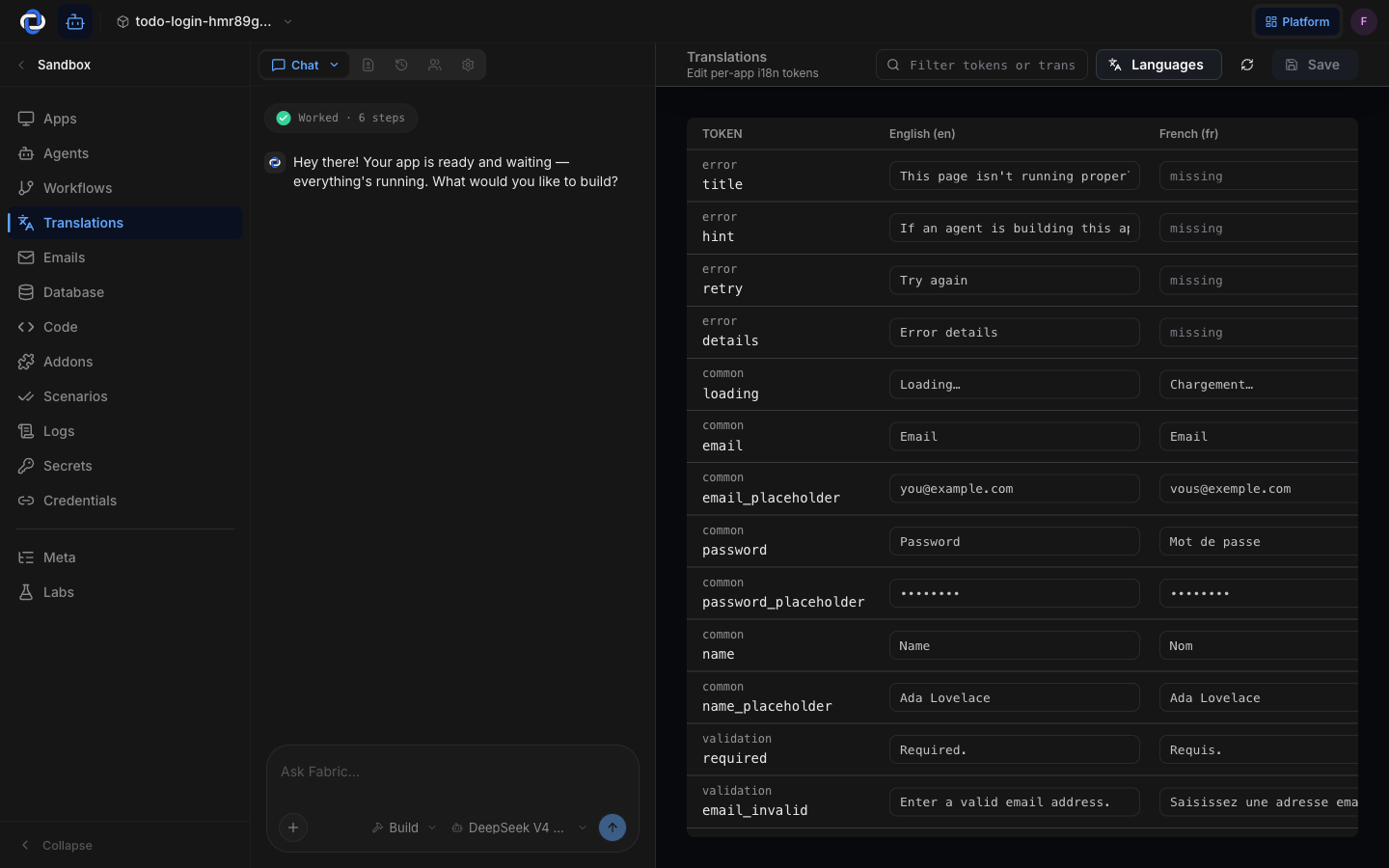
Each piece of text in your app is a row, and each language your app supports is a column. Edit any cell to change the wording for that language. Search to jump straight to the text you're looking for, rather than scrolling.
Adding a language
Click Languages and add the new one. It appears as a fresh column, with each cell flagged as missing until you fill it in. As you add the translations, that language becomes available to your users — your app, and the emails it sends, can all speak it.
Keeping every language in one table means nothing gets missed — cells without a translation are flagged missing, so you can see at a glance what still needs doing.
Where the words come from
Translations cover the text in your frontend app and your emails. If a sandbox doesn't have a frontend app with translatable text yet, there's nothing to translate — this view will tell you so rather than showing an empty grid.
Live while you build
You edit translations from inside the Builder, alongside the app preview. Change a word and you can see it reflected in the running preview, so you're never guessing how a phrase will fit.
Where to go next
- App preview — see your wording live as you edit it.
- Design — change how your app looks, alongside what it says.
- Emails — the emails that use this wording, in every language.